Change how a link looks
Right-click any link and its Appearance tab holds path style (curve, arc, orthogonal, straight), thickness and colour - thicken a backbone, dash a backup path, colour-code a link class, all without touching the lab-wide link defaults.
Right-click the link - the Appearance tab holds its thickness (segmented control), path style and colour, all scoped to this one wire.
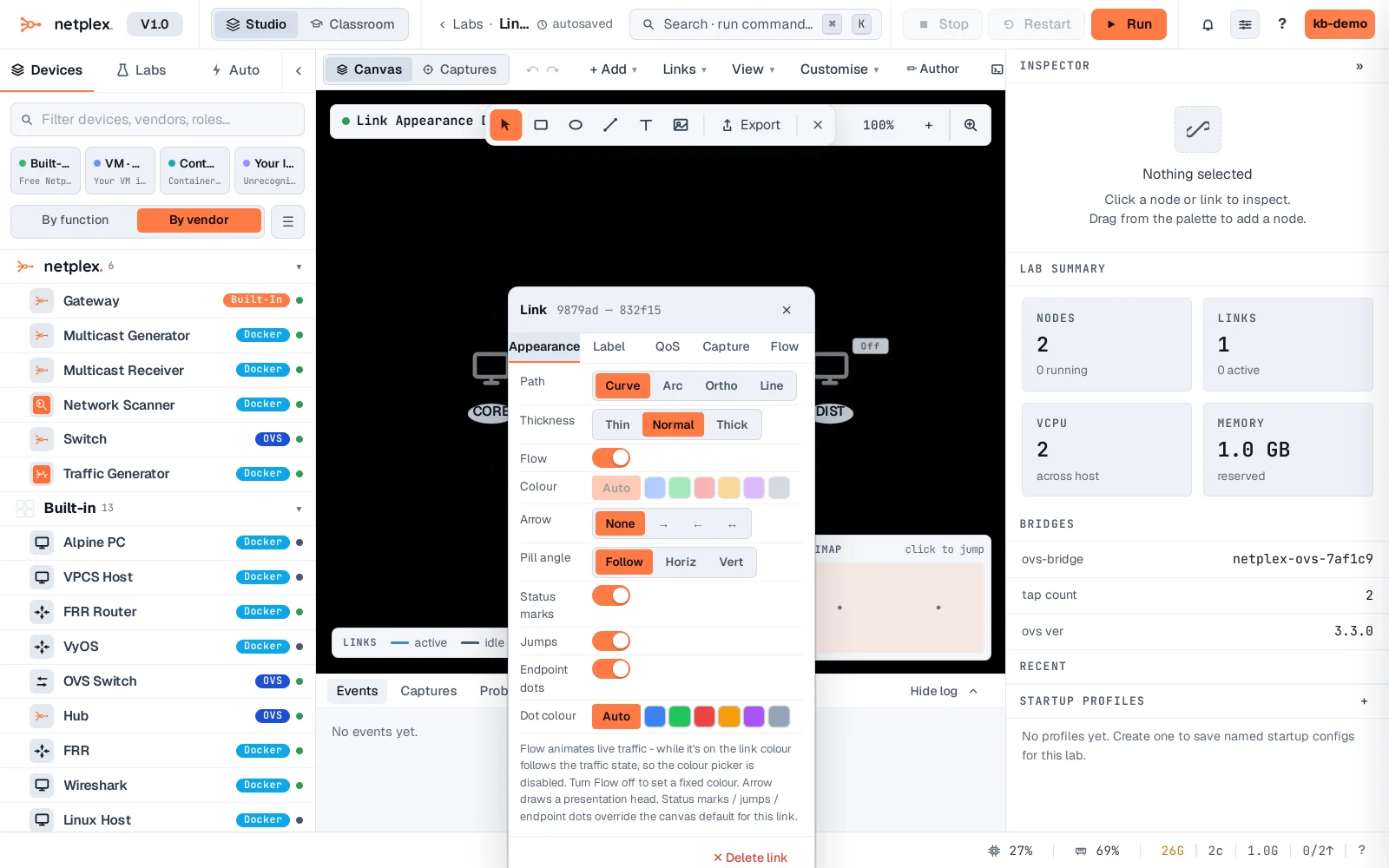
Set it to Thick and the link redraws immediately on the canvas - a quick way to mark a backbone or uplink so it reads at a glance among a dozen thinner access links.
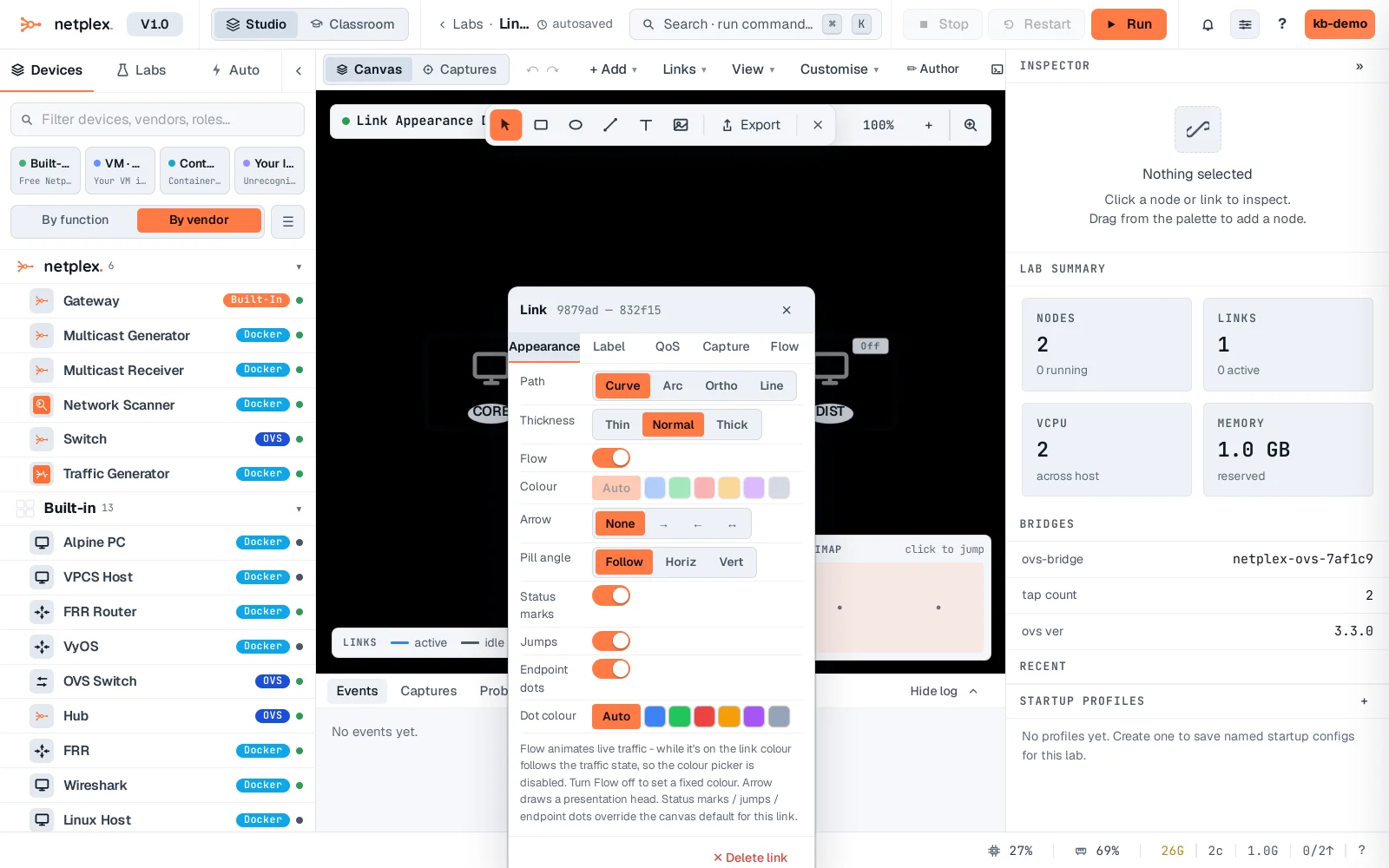
The popover's controls each have an auto/default option to fall back to the lab-wide link style. See "Change how a node looks" for the same idea applied to a device, and "How appearance inheritance works" for how the tiers stack.