Back up your labs to git
Every lab already has a local version history - each save is a commit (a saved snapshot) in a git repository (a folder that tracks changes) for that lab on the server. Point that history at a remote (GitHub, or your own git server) and it becomes a real backup: copied automatically to another machine, and you can restore from it.
Open Settings → General and find the git backup section. The wizard makes an SSH deploy key (a key that lets netplex. save to your repository), shows you how to add it to your repo host, tests the connection, and turns on auto-push.
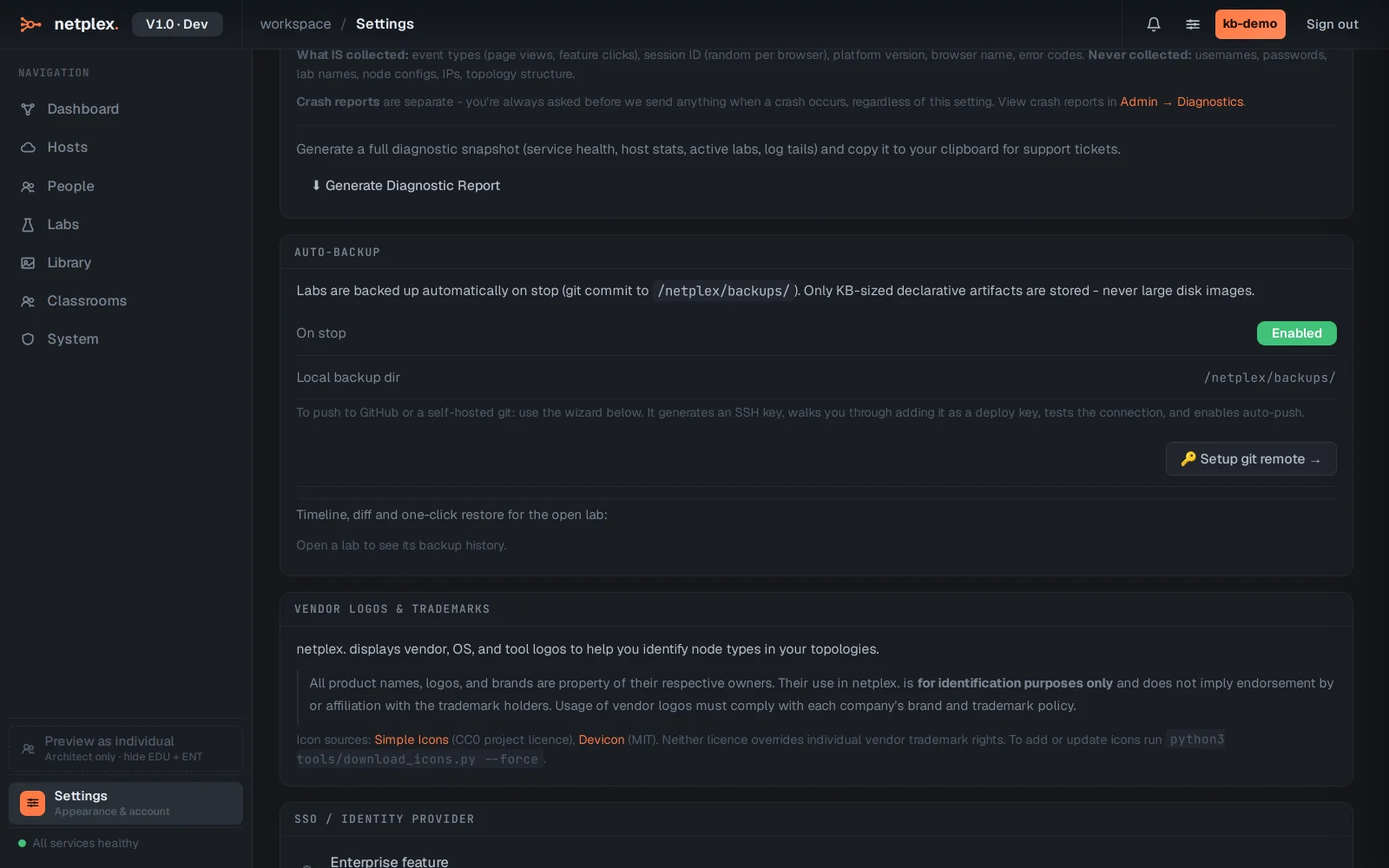
Click Setup git remote to launch the wizard. Nothing private leaves the netplex. machine: the private key stays on the server; you paste only the public half into GitHub as a deploy key.
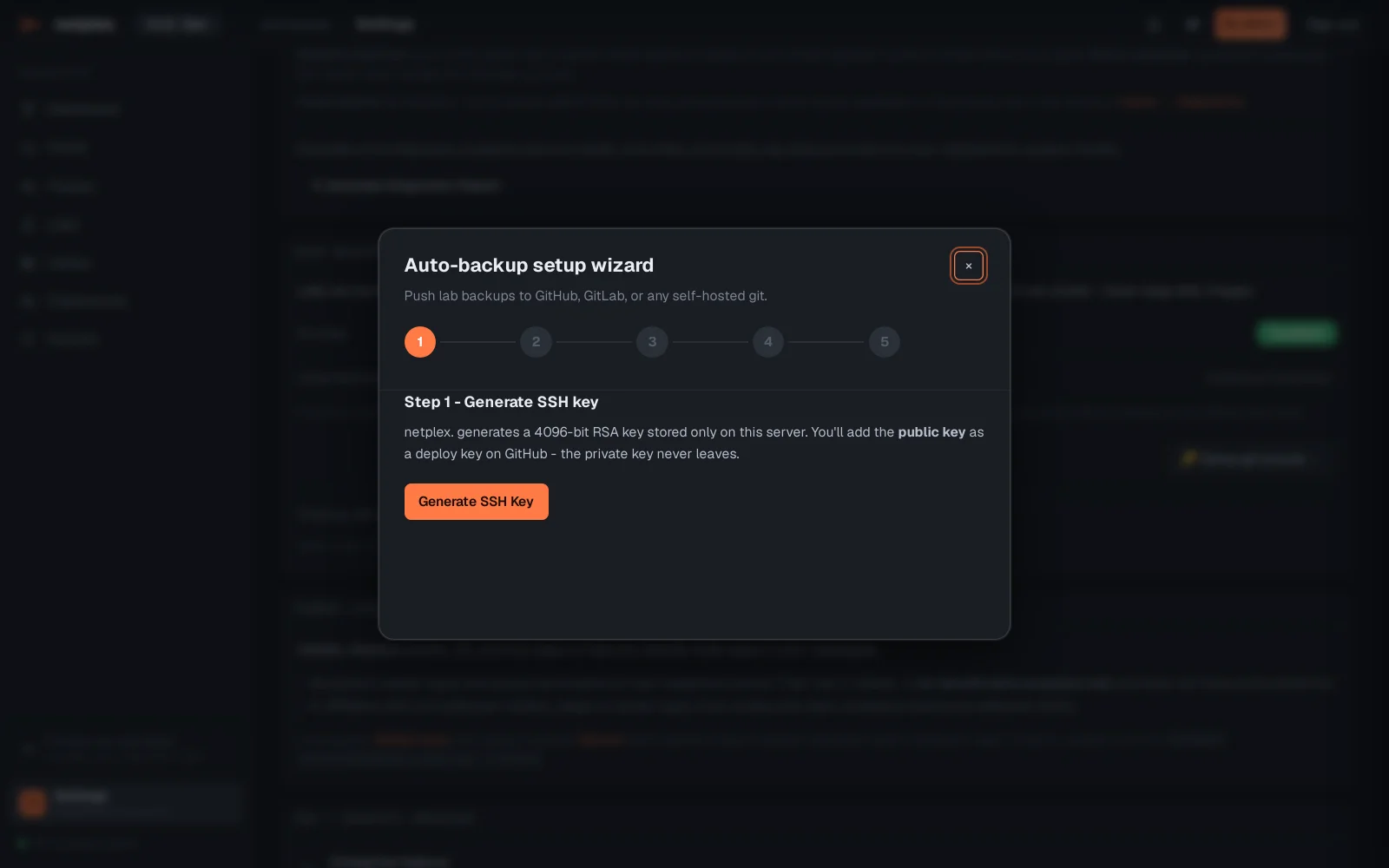
Once connected, every lab save pushes automatically. Restoring is just as direct: the backup timeline lists each version with its diff, and any point can be restored - to the same lab or as a copy.
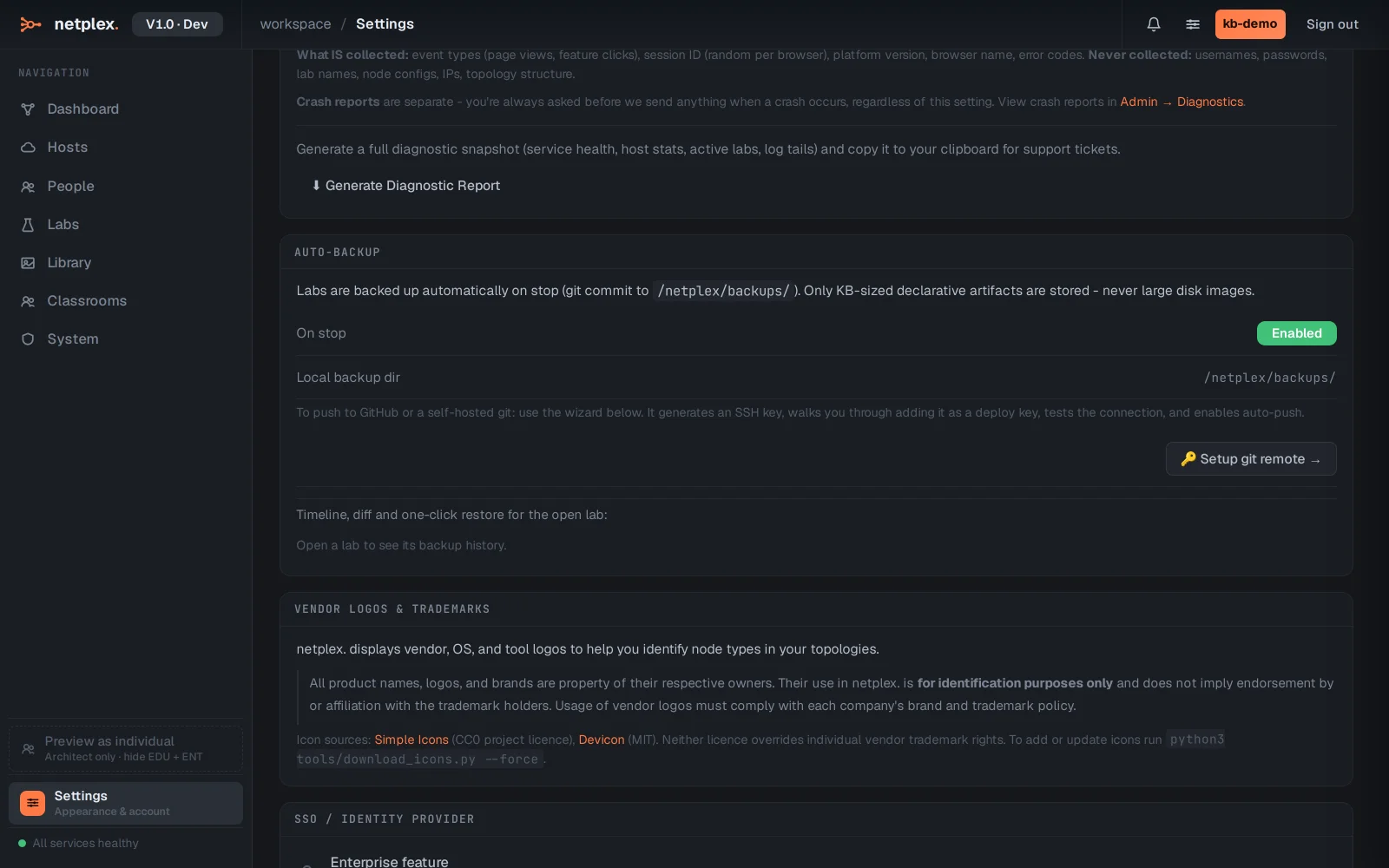
The on-server history works with no setup at all - the remote adds the off-box copy. Device configurations saved inside nodes ride along, since they are part of the lab document.