Cloud gateway: reach this computer (Host mode)
The Cloud gateway node isn't only for internet access - switch it to Host mode and it opens a direct private connection (a veth pair, which is a virtual cable) between the lab and the computer netplex. runs on. No NAT (address translation) and no DHCP (automatic addresses): just a private point-to-point link to reach services running on the host itself (a local DNS server, a file share, an API you're developing).
Select the Cloud node and switch Gateway mode to Host. The info box explains the addressing: a 169.254.x.0/30 link-local pair, host side .1, lab side .2 - no manual subnet planning needed.
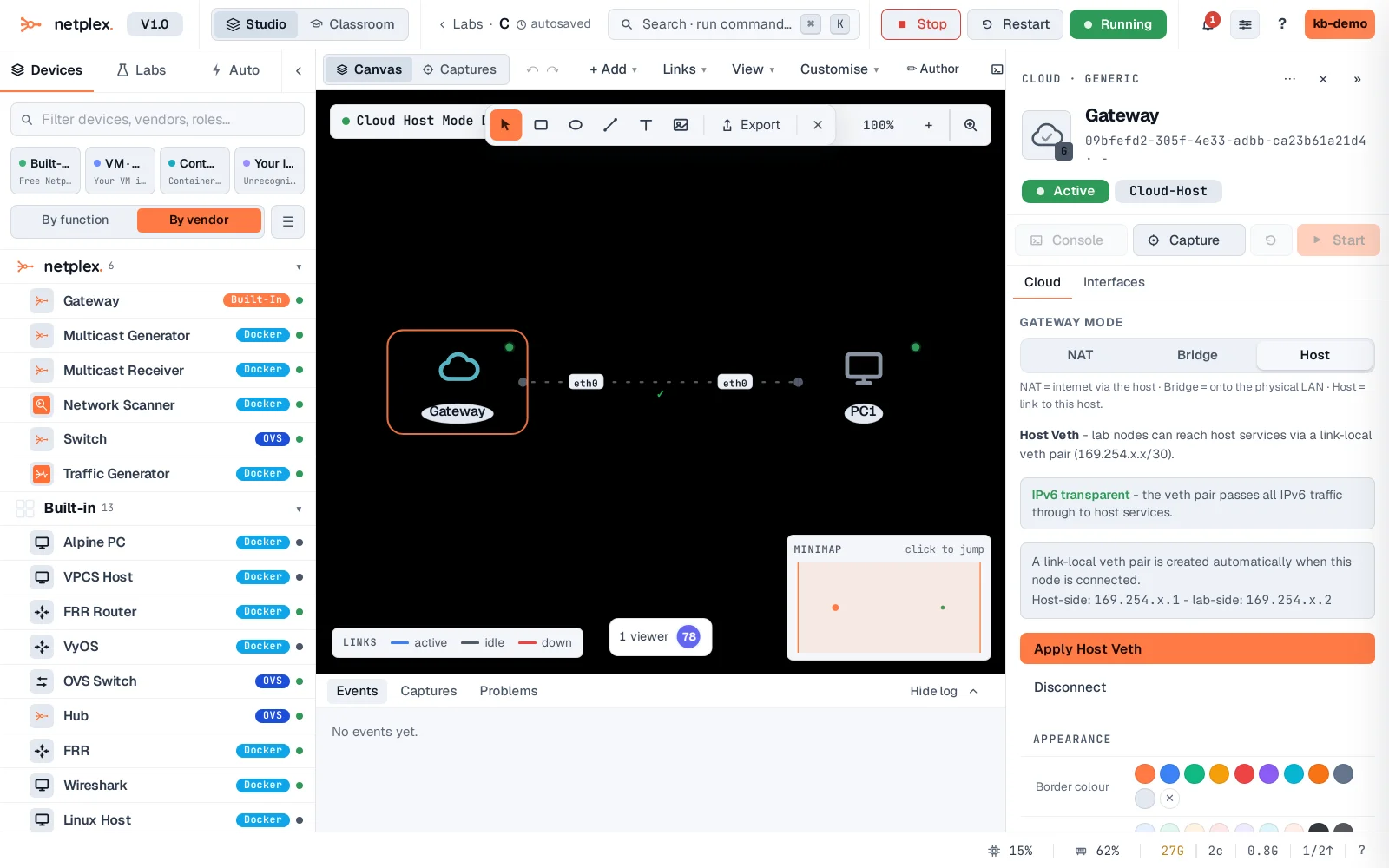
Click Apply Host Veth. netplex. wires a real veth pair between the lab's bridge and the host - immediately usable, no lab restart required.
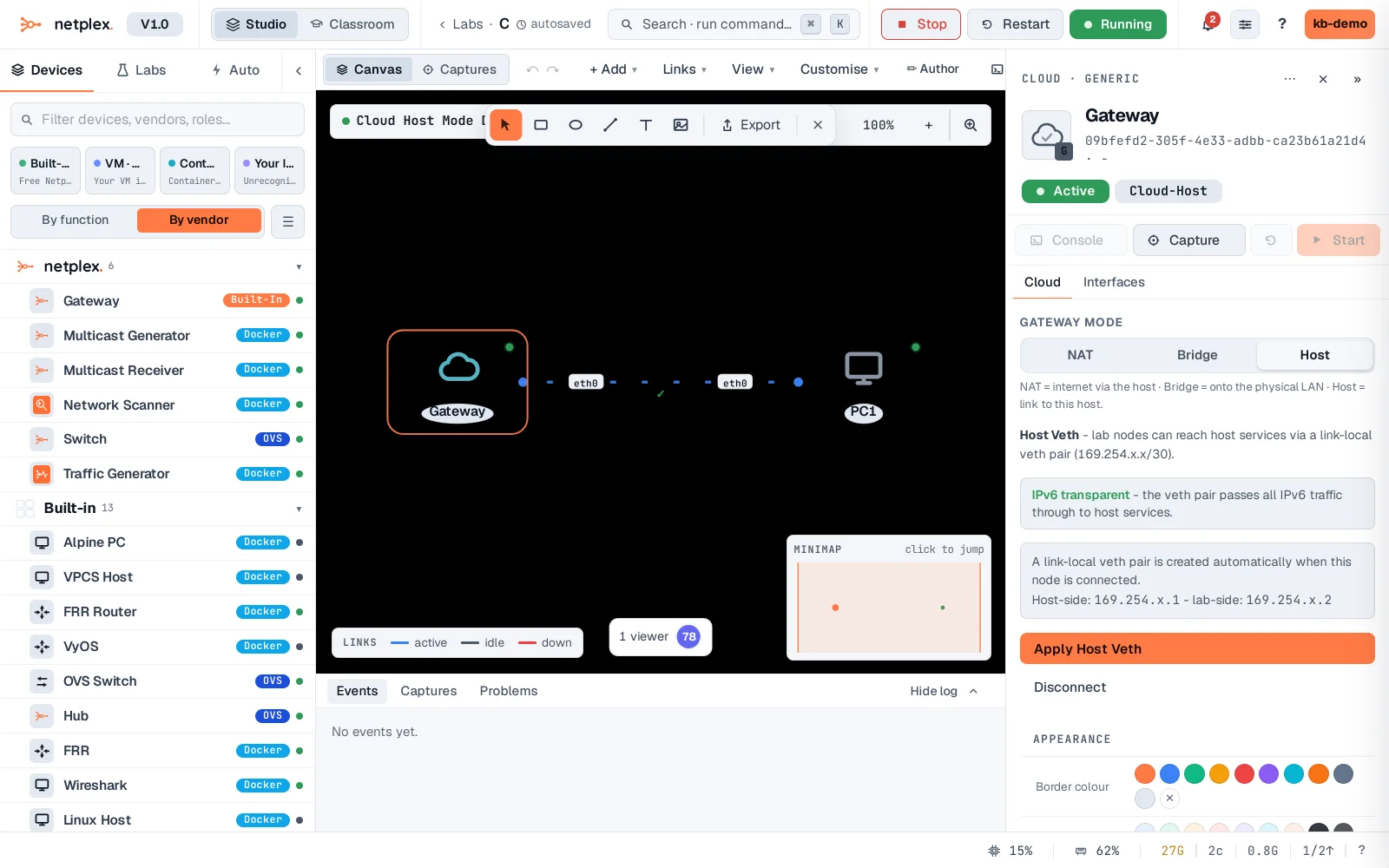
Proof it is real: give PC1 a static IP in that link-local range and ping the host side. No DHCP here - Host mode is meant for a fixed, predictable address on both ends.
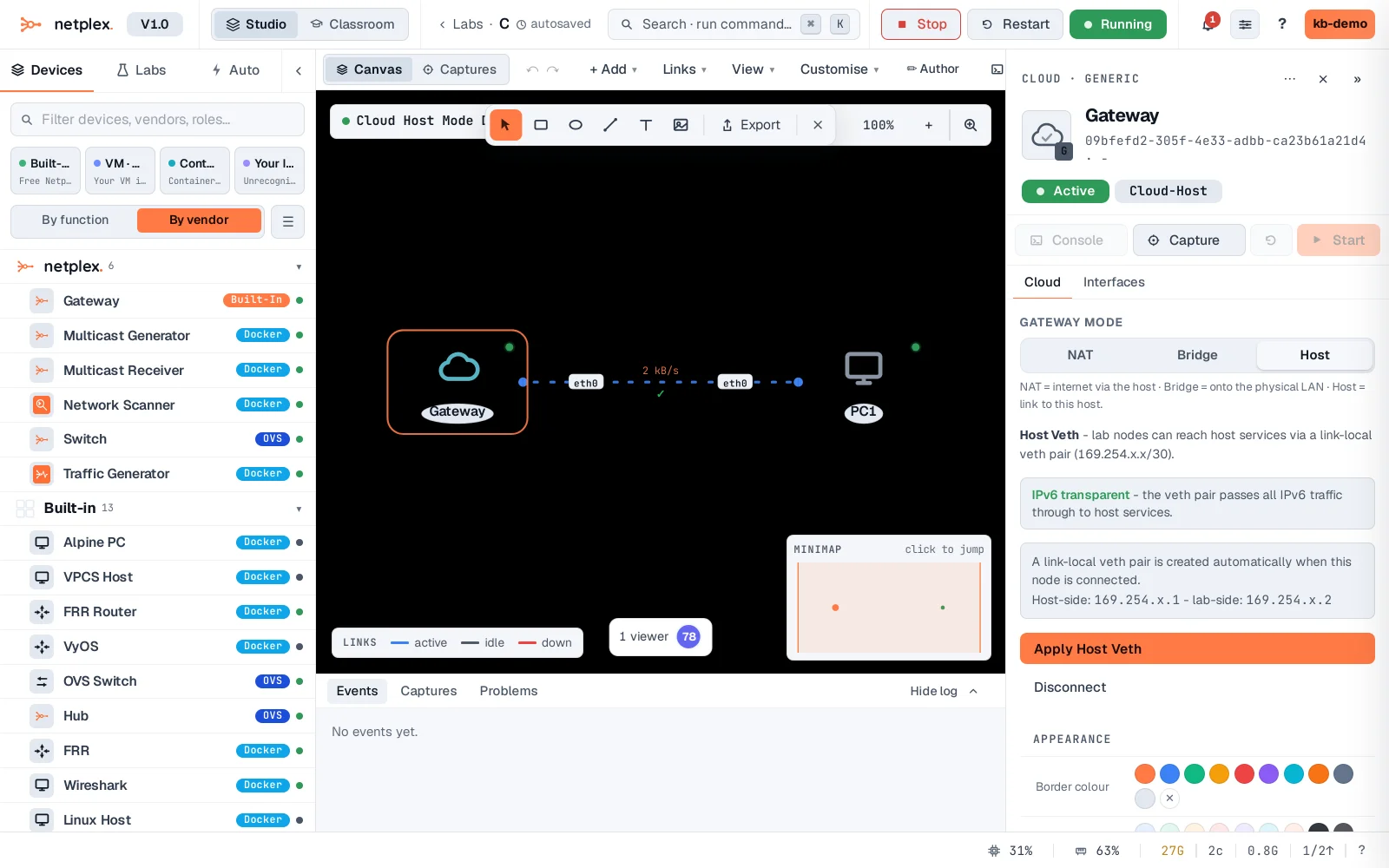
Host mode never touches your host's own networking beyond that one veth pair - no NAT rules, nothing added to the default route. Disconnect on the same panel tears it down cleanly. For internet access instead, switch back to NAT; for putting lab nodes directly on your physical LAN, Bridge mode does the same job over a real (wired) Ethernet adapter.